 English
 العربية
 Deutsch
 Español
 Français
 Italiano
 Português
 Русский
 Türkçe
 Tiếng Việt

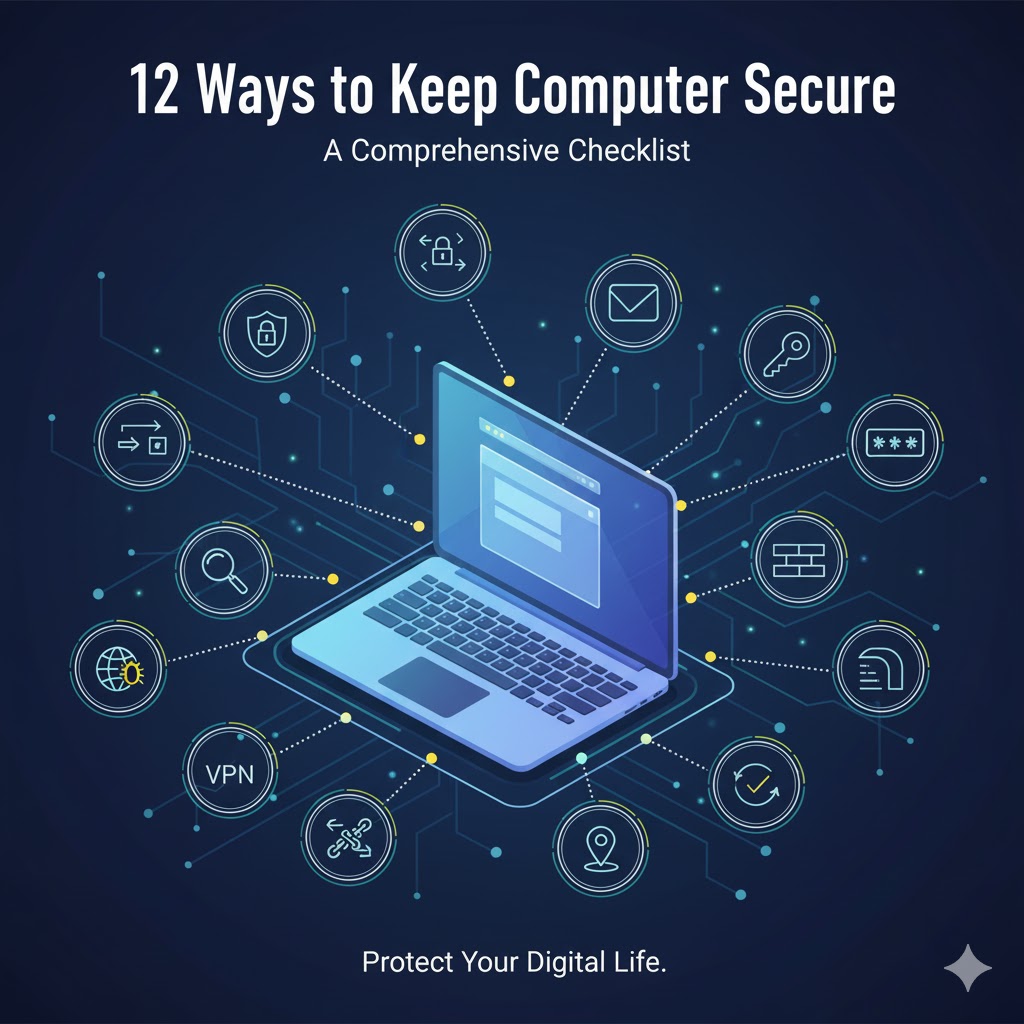
12 Ways of Keeping Your Computer Secure: A Comprehensive Checklist
The Security Checklist You Need
12 Essential Steps to Secure Your Computer: A Complete Checklist
Your computer holds your entire digital world — from personal photos and financial details to sensitive work files. Protecting it takes more than just installing antivirus software. Real security demands a layered defense strategy that covers software, hardware, and even physical safety.
In this guide, we’ll walk through 12 essential steps you can take right now to protect your machine against both cyber threats and physical risks.
Digital Fortification: Software and Account Security
1. Encrypt Your Hard Drive (Full Disk Encryption)
If your device is ever lost or stolen, encryption is your last line of defense. Full Disk Encryption (FDE) scrambles every bit of data on your drive, making it unreadable without your password.
Use built-in tools like BitLocker (Windows Pro) or FileVault (macOS) to enable encryption.
2. Set a Strong Password (The Gatekeeper)
Your password is the key to your digital castle.
Choose one that’s:
-
At least 12 characters long
-
Complex (use numbers, symbols, and mixed case)
-
Unique for every account
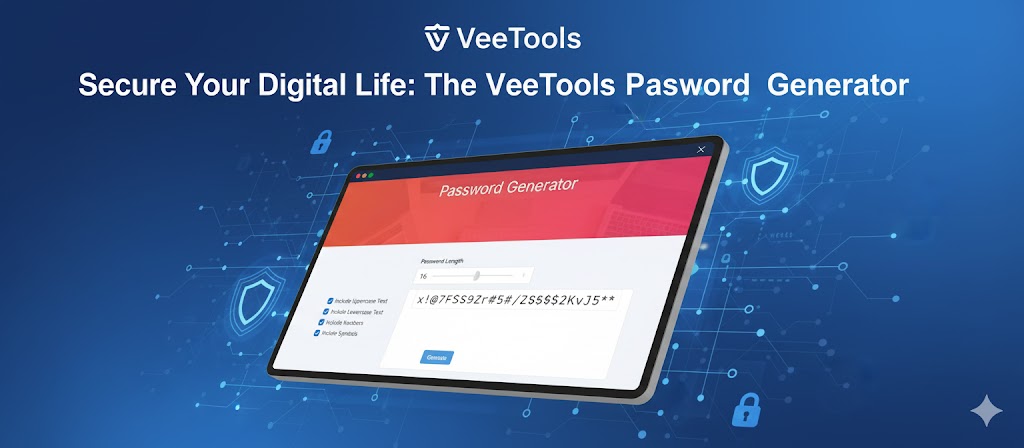
Use a password generator and store credentials in a trusted password manager to keep things organized and secure.
3. Enable Multi-Factor Authentication (MFA)
Passwords can be stolen, but MFA makes that far less damaging. By requiring a second form of verification (like a phone code or fingerprint), MFA blocks over 99% of automated attacks.
Turn it on for your most important accounts — email, banking, and social media — and use an authenticator app rather than SMS when possible.
4. Install Anti-Malware and Antivirus Software
Even with built-in protection, an additional security suite adds another layer of defense against malware, phishing, and ransomware.
Choose reputable antivirus software and schedule regular full-system scans to catch anything that slips through.
5. Keep Software Updated (Patch Vulnerabilities)
Outdated software is one of the easiest ways for hackers to break in. System and app updates often include critical security patches, so enable automatic updates for your operating system, browser, and apps.
6. Keep Your Firewall Active
Firewalls act as your computer’s gatekeeper — controlling incoming and outgoing network traffic and blocking suspicious connections.
Make sure your Windows Defender Firewall or macOS Firewall is always turned on and properly configured.
Physical and Privacy Protection
7. Back Up Your Data (Your Recovery Plan)
Even the best security can’t prevent every disaster. Backups are your safety net.
Follow the 3-2-1 Rule:
-
Keep 3 copies of your data
-
Store them on 2 different types of media
-
Keep 1 copy off-site (like cloud storage)
That way, if ransomware or hardware failure hits, your data stays safe.
8. Add a Webcam Cover
A simple fix for a serious privacy concern. A sliding webcam cover prevents hackers or rogue apps from spying on you. They’re inexpensive, effective, and essential — especially for laptops.
9. Use a Privacy Screen
When working in public spaces like airports or cafes, “shoulder surfers” can easily glimpse sensitive information.
A privacy screen narrows your display’s viewing angle so only you can see it directly. It’s a must-have for mobile professionals.
10. Secure Your Laptop with a Kensington Cable
Sometimes the best security is physical.
A Kensington lock cable attaches your laptop to a solid, immovable object — a small deterrent that can stop opportunistic thieves in shared or public environments.
Network and Location Security
11. Use a VPN (Virtual Private Network)
A VPN encrypts your internet traffic and hides your IP address, protecting your data from prying eyes — especially when using public Wi-Fi.
Choose a trusted VPN provider and enable it whenever you’re outside your secure home network.
12. Enable Device Location Tracking
If your computer goes missing, location tracking can help you find it — or remotely wipe it before someone accesses your data.
Turn on Find My (macOS/iOS) or Find My Device (Windows) and link it to your main account.
Final Thoughts: Security Is a Habit
Computer security isn’t a one-time setup — it’s a mindset. By applying these 12 layered strategies, you’ll dramatically reduce your risk of cyberattacks and data loss.
Start today — even small improvements, like enabling encryption or MFA, can make a world of difference. Your digital life deserves protection as strong as the data it holds.

Violet
Administrator
Ensuring secure, reliable, high-performance tools for every digital task.
Popular Tools
Recent Posts